Troubleshooting: DAGs, Operators, Connections, and other issues in Apache Airflow v2
To Nha Notes | Dec. 26, 2022, 8:04 p.m.
Tasks
The following topic describes the errors you may receive for Apache Airflow tasks in an environment.
I see my tasks stuck or not completing
If your Apache Airflow tasks are "stuck" or not completing, we recommend the following steps:
-
There may be a large number of DAGs defined. Reduce the number of DAGs and perform an update of the environment (such as changing a log level) to force a reset.
-
Airflow parses DAGs whether they are enabled or not. If you're using greater than 50% of your environment's capacity you may start overwhelming the Apache Airflow Scheduler. This leads to large Total Parse Time in CloudWatch Metrics or long DAG processing times in CloudWatch Logs. There are other ways to optimize Apache Airflow configurations which are outside the scope of this guide.
-
To learn more about the best practices we recommend to tune the performance of your environment, see Performance tuning for Apache Airflow on Amazon MWAA.
-
-
There may be a large number of tasks in the queue. This often appears as a large—and growing—number of tasks in the "None" state, or as a large number in Queued Tasks and/or Tasks Pending in CloudWatch. This can occur for the following reasons:
-
If there are more tasks to run than the environment has the capacity to run, and/or a large number of tasks that were queued before autoscaling has time to detect the tasks and deploy additional Workers.
-
If there are more tasks to run than an environment has the capacity to run, we recommend reducing the number of tasks that your DAGs run concurrently, and/or increasing the minimum Apache Airflow Workers.
-
If there are a large number of tasks that were queued before autoscaling has had time to detect and deploy additional workers, we recommend staggering task deployment and/or increasing the minimum Apache Airflow Workers.
-
You can use the update-environment command in the AWS Command Line Interface (AWS CLI) to change the minimum or maximum number of Workers that run on your environment.
aws mwaa update-environment --name MyEnvironmentName --min-workers 2 --max-workers 10 -
To learn more about the best practices we recommend to tune the performance of your environment, see Performance tuning for Apache Airflow on Amazon MWAA.
-
-
There may be tasks being deleted mid-execution that appear as task logs which stop with no further indication in Apache Airflow. This can occur for the following reasons:
-
If there is a brief moment where 1) the current tasks exceed current environment capacity, followed by 2) a few minutes of no tasks executing or being queued, then 3) new tasks being queued.
-
Amazon MWAA autoscaling reacts to the first scenario by adding additional workers. In the second scenario, it removes the additional workers. Some of the tasks being queued may result with the workers in the process of being removed, and will end when the container is deleted.
-
We recommend increasing the minimum number of workers on your environment. Another option is to adjust the timing of your DAGs and tasks to ensure that that these scenarios don't occur.
-
You can also set the minimum workers equal to the maximum workers on your environment, effectively disabling autoscaling. Use the update-environment command in the AWS Command Line Interface (AWS CLI) to disable autoscaling by setting the minimum and maximum number of workers to be the same.
aws mwaa update-environment --name MyEnvironmentName --min-workers 5 --max-workers 5 -
To learn more about the best practices we recommend to tune the performance of your environment, see Performance tuning for Apache Airflow on Amazon MWAA.
-
-
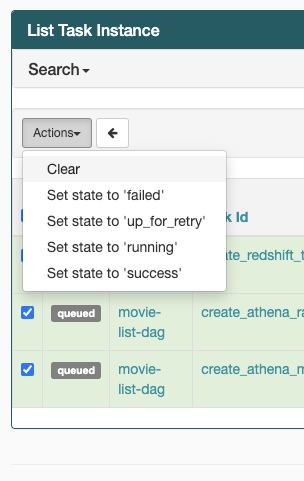
If your tasks are stuck in the "running" state, you can also clear the tasks or mark them as succeeded or failed. This allows the autoscaling component for your environment to scale down the number of workers running on your environment. The following image shows an example of a stranded task.

-
Choose the circle for the stranded task, and then select Clear (as shown). This allows Amazon MWAA to scale down workers; otherwise, Amazon MWAA can't determine which DAGs are enabled or disabled, and can't scale down, if there are still queued tasks.
-
-
Learn more about the Apache Airflow task lifecycle at Concepts in the Apache Airflow reference guide.
Negsignal.SIGKILL in MWAA
The error message Task exited with return code Negsignal.SIGKILL even on tasks not requiring much memory or compute on my airflow DAGs.
This error typically occurs when the available resources are less than what is required by the task. While you may not be explicitly using a lot of memory, it is possible that one of the Python libraries that you or your operator are using may be exceeding what is available in the AWS Fargate container used by MWAA.
One option is to try refactoring your tasks to use different libraries or operators. You may also want to test your DAGs using the MWAA local runner where you can more directly monitor what resources each task is requiring.
Another option is to reduce the number of tasks per worker, as it is possible that the aggregation of tasks might be consuming excessive resources. See celery.worker_autoscale setting in the MWAA Documentation
References
https://docs.aws.amazon.com/mwaa/latest/userguide/t-apache-airflow-202.html
https://www.repost.aws/questions/QUeYBUeKyVTL2BsdxncrfH5A/negsignal-sigkill-in-mwaa