Scanning images with Trivy in an AWS CodePipeline
To Nha Notes | Aug. 12, 2024, 12:21 a.m.
If you’re working with containers, it’s important to scan your images for known vulnerabilities, so that you don’t deploy code that an attacker can easily exploit. A good way of ensuring that all your deployed images get this check is to include scanning as an automated step in your CI/CD pipeline. Let’s see how easy it is to include the open source scanner Trivy in an AWS CodePipeline. There’s a fun bonus for those of us who like containers: CodePipeline builds run in containers!
Scanning Tools
There are numerous container image scanning tools, from open source implementations like Trivy, Clair, and Anchore to commercial solutions from companies like JFrog, Palo Alto, and Aqua. Many container image registry solutions, such as Docker Trusted Registry and the CNCF project Harbor, as well as the registries provided by the major public clouds, include scanning as a built-in feature.
Unfortunately, the results you get from different scanners vary considerably, and it’s worth considering why.
Using Snyk to scan a Docker image
Snyk is a security platform that can be used to scan Docker images for vulnerabilities. Here is an example of how to use Snyk to scan a Docker image for vulnerabilities:
- First, we have to install the Snyk CLI on our machine. We can do this by running the following command:
$ npm install -g snyk
- Once Snyk is installed, we can authenticate with our Snyk account by running the following command and following the prompts:
$ snyk auth
- Next, we can run the following command to scan a specific Docker image for vulnerabilities:
$ snyk test --docker <image-name>
The preceding command will perform a vulnerability scan on the specified Docker image and print the results in the console. The results will show the number of vulnerabilities found, the severity of each vulnerability, and the package and version that is affected.
- We can also use the --file flag to scan a Dockerfile instead of a built image:
$ snyk test --file=path/to/Dockerfile
- Additionally, we can also use the --org flag to specify an organization, if we’re a member of multiple organizations:
$ snyk test --docker <image-name> --org=my-org
- Finally, we can use the --fix flag to automatically fix the vulnerabilities found by running the following command:
$ snyk protect --docker <image-name>
Please note that this feature is only available for images that are built using a Dockerfile and it will update the Dockerfile with the new package versions, and you will need to rebuild the image to take advantage of the fix.
NOTE
The Snyk free plan is limited to a certain number of scans, and it does not include the Protect feature. You will have to upgrade to a paid plan to have access to this feature.
Using docker scan to scan a Docker image for vulnerabilities
In this section, we are once again going to use Snyk to scan a Docker image for vulnerabilities. Snyk should be included with your Docker Desktop installation:
- Check by using this command:
$ docker scan --version
The output should look similar to this:
Version:    v0.22.0
Git commit: af9ca12
Provider:   Snyk (1.1054.0)
- Let’s try to scan a sample whoamiapplication from the author’s Docker Hub account. First, make sure you have the whoami image in your local cache:
$ docker image pull gnschenker/whoami:1.0
- Scan the image for vulnerabilities:
$ docker scan gnschenker/whoami:1.0
- You will be asked the following:
Docker Scan relies upon access to Snyk, a third party provider, do you consent to proceed using Snyk? (y/N)
Please answer this with y.
The result of the preceding scan looks like this on my computer:
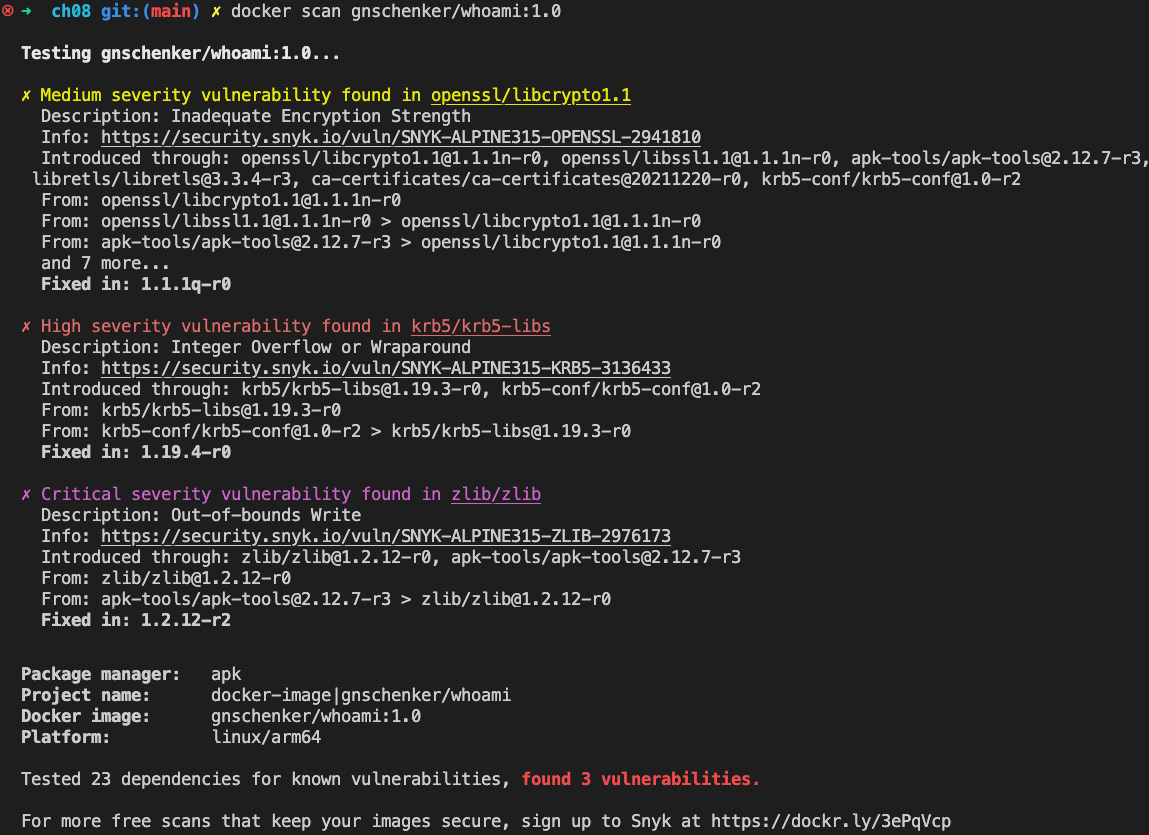
Figure 8.8 – Scanning the gnschenker/whoami:1.0 Docker image
As you can see, there were three vulnerabilities found in this version of the image: one of medium, one of high, and one of critical severity. It is clear that we should address critical vulnerabilities as soon as possible.
Reference
https://aws.amazon.com/blogs/containers/scanning-images-with-trivy-in-an-aws-codepipeline/