How to move the "C:\users\username\AppData" folder to another drive from C:\ drive?
To Nha Notes | Dec. 12, 2023, 10:22 a.m.
You can follow the steps below to transfer the AppData folder.
Open the registry, then locate to
HKEY_CURRENT_USER\Software\Microsoft\Windows\CurrentVersion\Explorer\Shell Folders
and
HKEY_CURRENT_USER\Software\Microsoft\Windows\CurrentVersion\Explorer\User Shell Folders
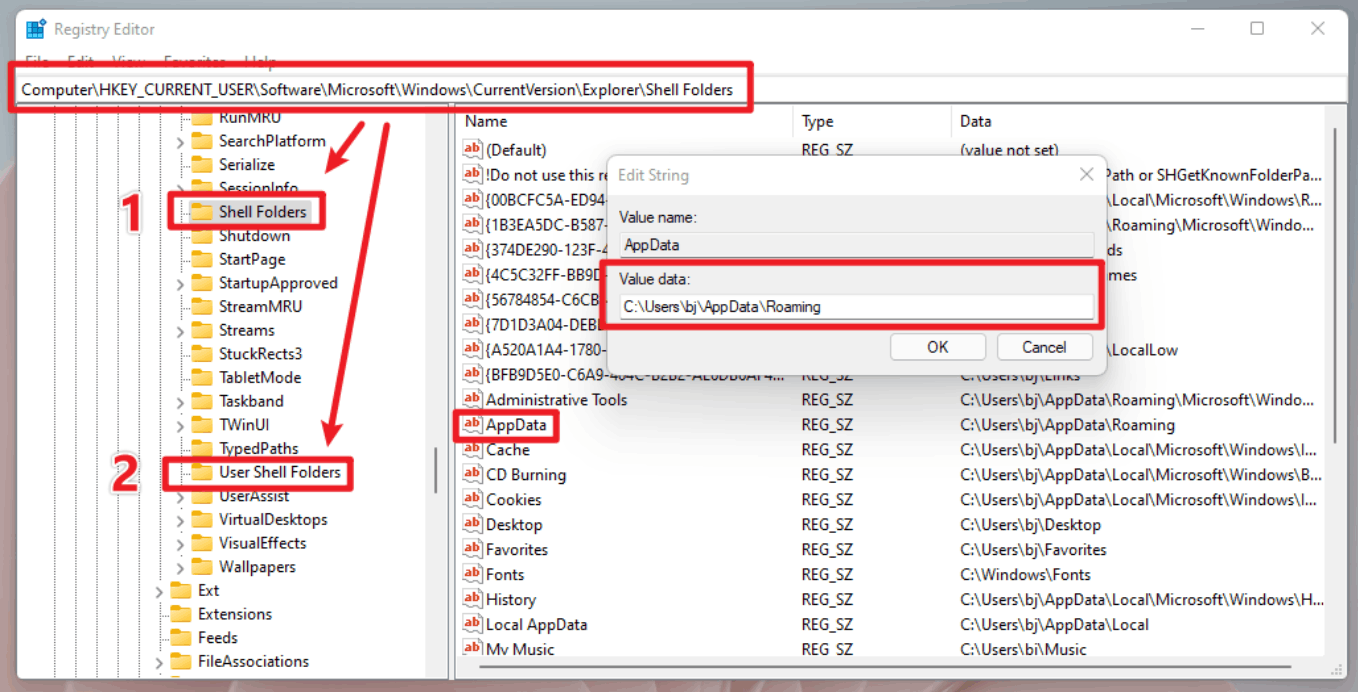
Double-click AppData in the 1 and 2 directories and change the path to the folder directory you want to transfer in the pop-up box.
Then copy all the data in the original AppData directory to whichever directory you modified, and finally restart your computer.
You could try to delete the AppData directory of the original disk, some software may be affected.
Backup of registry folders
C:\Users\tonha\AppData\Roaming
%USERPROFILE%\AppData\Local
Disclaimer: Generally, modifying registry subkeys or work group is intended for advanced users, administrators, and IT Professionals. It can help fix some problems, however, serious problems might occur if you modify the registry incorrectly. Therefore, make sure that you follow these steps carefully. For further protection, back up the registry before you modify it. Then, you can restore the registry if a problem occurs. For more information about how to back up and restore the registry, click here to view the article.https://support.microsoft.com/en-us/topic/how-to-back-up-and-restore-the-registry-in-windows-855140ad-e318-2a13-2829-d428a2ab0692